Define User Roles

Defining a Role
Defining a role for a given product will determine what type of permissions the users will have.
For the Revit products click the links below for more specific information:
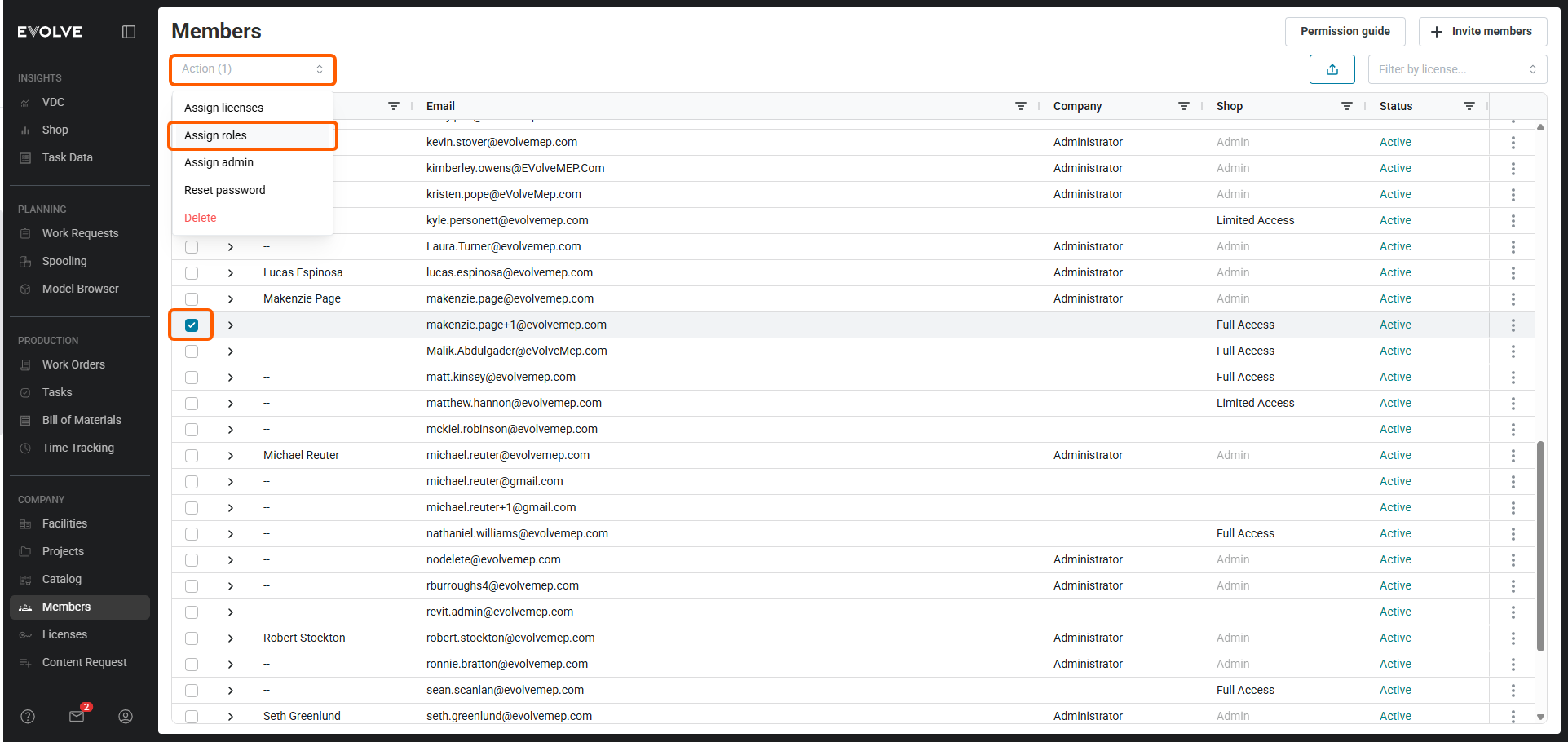
- From the https://foresite.evolvemep.com/ website's navigation bar, located on the left, under Company, click Members.
- From the Members screen, select 1 or more users that you'd like to set a Role for.
- From the upper left Actions dropdown menu, select Assign roles.
- From the Assign roles modal, select the applicable role to be set for the selected users.
- Once the role is set, select Confirm to finish.
Renaming User Roles
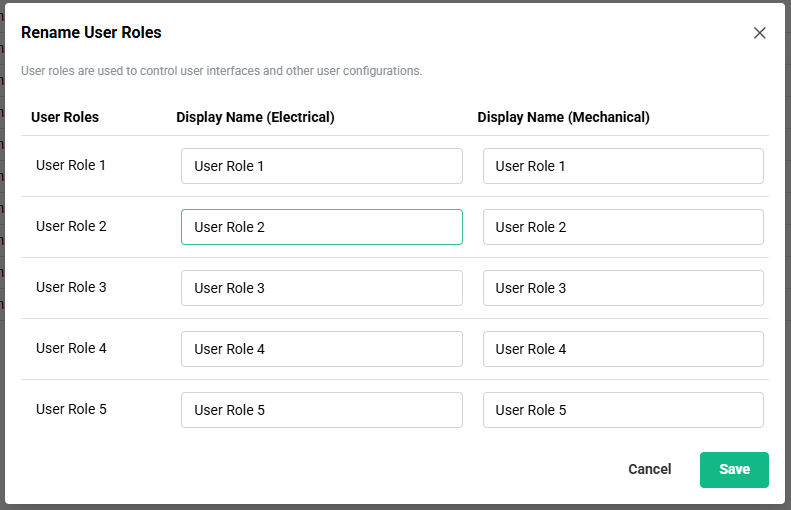
For the Revit products, EVOLVE provides 5 custom roles which are labeled as User Role 1 thru 5 by default. Admins can rename these roles to something more applicable as needed.
- From the https://foresite.evolvemep.com/ website, ensure the Admin module is selected from the Module Selector
 located in the upper right corner.
 - From the navigation bar, located on the left, under Company, click Members.
- From the main interface, click on the upper right button named Rename User Roles
- Within the Rename User Roles modal, rename the users roles as need.
- For example: Modeler, Coordinator, Detailer, etc.
