Manage Revit Roles

Manage Revit Roles
The Manage Revit Roles feature in EVOLVE Foresite allows administrators to configure role permissions, customize access levels, and assign roles to users for control over how users interact with EVOLVE features in Revit.

When to Use
Manage Revit Roles is useful for:
- Controlling user access to features and data
- Standardizing permissions across teams
- Assigning roles efficiently across large user groups
- Supporting governance and security requirements
Accessing Manage Revit Roles
- Open EVOLVE Foresite
- Navigate to the Company area
- Select Members
- Click Manage Revit Roles
Role Configuration
Administrators can configure roles through the options below.
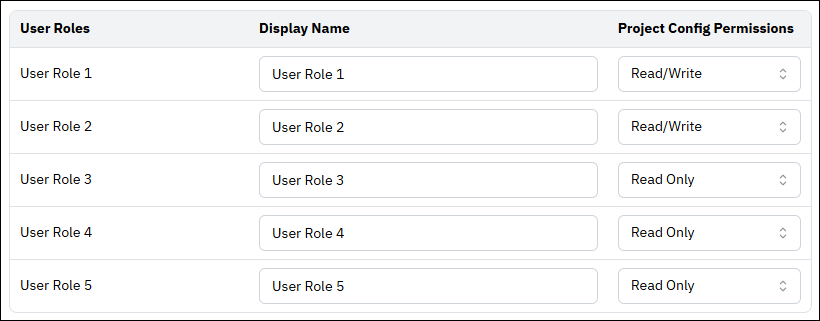
- Set a Display Name for each role
- Choose Read Only or Read/Write access
- Adjust permissions based on user responsibilities
Permission Guide
Displays the available role types to allow access standardization while maintaining flexibility across teams.
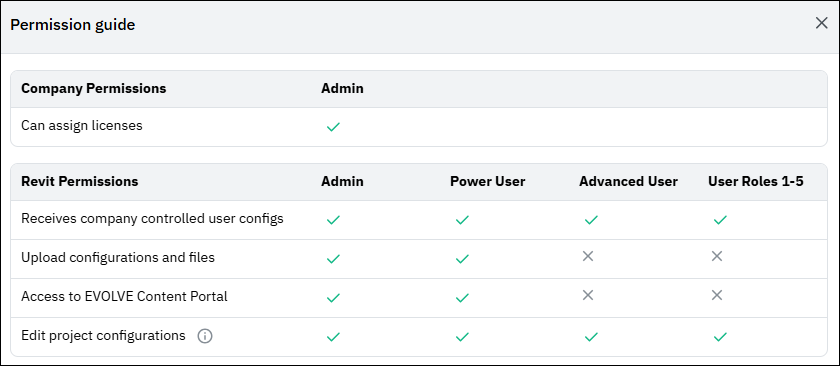
- Admins
- Full access, including assigning licenses and roles
- Power Users
- Access to upload and download user and project configurations
- Access to download content packages from Content Portal
- Advanced Users and User Roles (1–5)
- Can be renamed and tailored to different user groups
- Access to receive company controlled user configurations
- Access to edit project configurations depending on Read/Write role status
Assigning Roles to a Single User
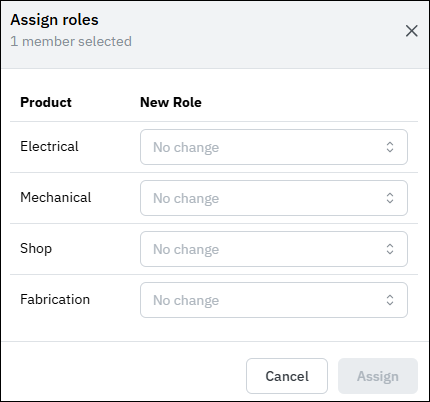
- Locate the desired user in the Members list
- Click the ellipsis (⋯) next to the user
- Select Assign Roles
- Choose roles for each product as desired
- Click Assign
Assigning Roles in Bulk
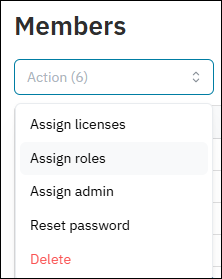
- Select multiple users using the checkboxes
- Tip: Use Shift + Click to select multiple users quickly.
- Open the Actions dropdown
- Click Assign Roles
- Choose roles for each product as desired
- Click Assign
